
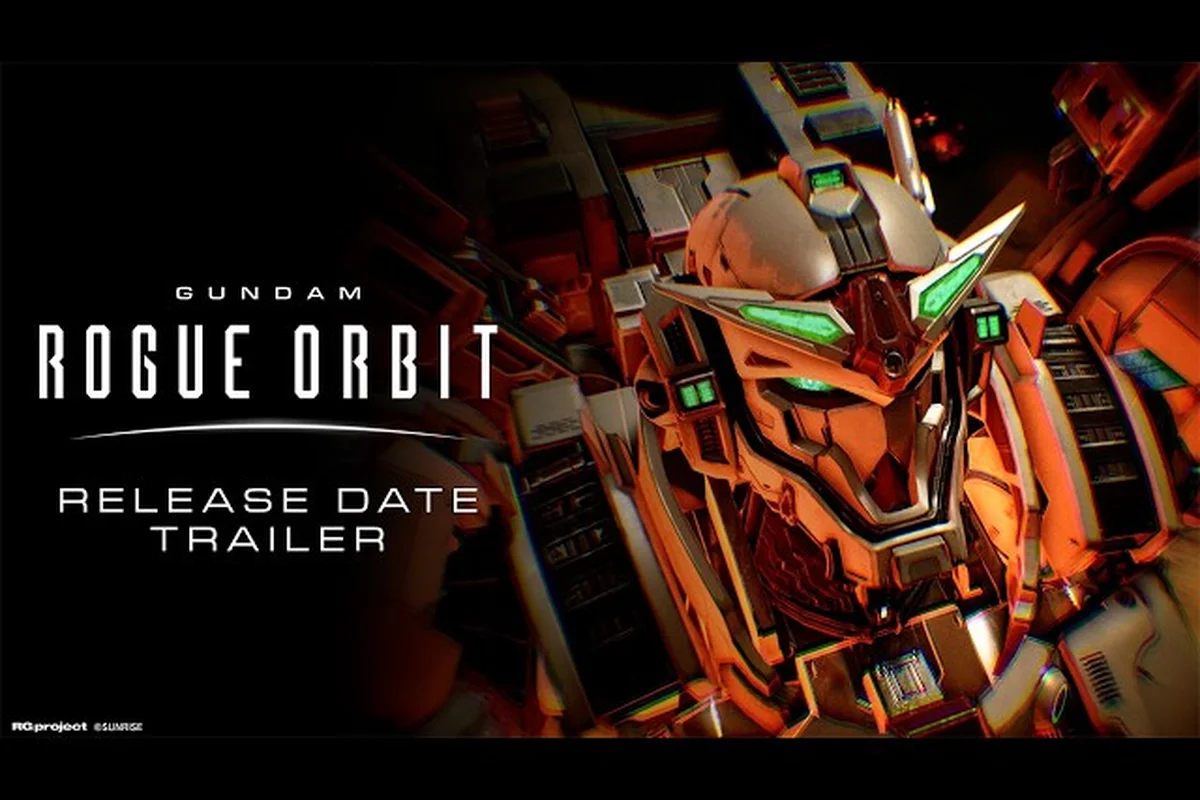
The GUNDAM ROGUE ORBIT PC release lands on March 4, 2027 through Steam, putting Bandai Namco's high-mobility mecha action game on a platform where settings tinkering is practically a rite of passage. Getting your machine ready matters because fast-paced mobile suit combat punishes every dropped frame. This guide breaks down what to expect for GUNDAM ROGUE ORBIT PC performance, the resolution and settings choices that matter most, and a practical optimization path you can run before launch day.
What the GUNDAM ROGUE ORBIT PC Release Brings to Desktop
The GUNDAM ROGUE ORBIT on Steam listing confirms a single-player and online co-op action game with Steam Achievements, DualSense and DualShock controller support, Steam Cloud, and HDR availability. The Steam API entry also confirms the developer is Bandai Namco Studios Inc. with publisher Bandai Namco Entertainment Inc., both locked to a 64-bit processor and OS requirement. That single detail — 64-bit only — is your first optimization gate, because 32-bit Windows installations and older CPUs simply will not boot the title.
The standard edition pre-purchase grants the Earth Blue Color Customization unlock, while the Deluxe tier stacks a Mission Reward Booster, Mobile Suit Color Pack, Premium MOD Skins Set, and Digital Artwork & Music Selection. None of those extras impact performance, but they do mean the client ships with additional art assets that can stretch VRAM budgets on lower-end GPUs. Players who jump in during the first week should expect patches that smooth out the launch build, and the official GUNDAM ROGUE ORBIT website will be the cleanest source for patch notes and confirmed spec sheets as they arrive.
Why PC Settings Matter for a Mecha Action Game
GUNDAM ROGUE ORBIT is built around constant thrust, boost-dash cancels, and high-speed mid-air turning. That kind of action generates more particles, beam effects, and screen-space distortion per second than a typical third-person action game. When the framerate dips during a boost chain, the mobile suit essentially teleports between positions, which is brutal for a game where aiming and spacing drive every encounter. Settings that look harmless in a static screenshot — soft shadows, depth of field, volumetric beams — multiply their cost when the camera is whipping through a debris field at full throttle.
| Combat Scenario | Frame Budget Risk | Most Impactful Setting |
|---|---|---|
| Boost-dash in open space | High motion blur cost | Motion Blur |
| Close-range beam spray | High particle cost | Beam Effect Quality |
| Orbit descent into fleet battle | High draw call cost | Crowd / Fleet Density |
| Thruster trail viewing | High volumetric cost | Volumetric Lighting |
A 1% low framerate that holds steady feels far smoother during a boost-cancel chain than a benchmark run that spikes to 144 fps and then drops to 45 — so GUNDAM ROGUE ORBIT PC performance tuning should lock in frame pacing (capped vsync or a frame limiter) and a native or lightly-upscaled resolution before chasing maximum eye candy like volumetric beams or crowd density, since the fleet-battle rows in the table above show that draw-call and volumetric spikes punish inconsistent frametimes far harder than a lower average fps.
Confirmed Specs, Gaps, and Where to Set Expectations
The Steam appdetails API flags both the minimum and recommended tiers as Additional Notes TBA at the time of writing, which means no final numbers are published. That gap is normal for a title this far from launch, and community testing on the r/GundamRogueOrbit subreddit has not yet produced a verified spec sheet. Treat every leaked spec you see in the meantime as rumor, and wait for the official listing to update before you buy hardware.
What We Know For Certain
-
64-bit processor and OS required for both tiers
-
HDR available on the Steam build
-
Steam Cloud, Achievements, Family Sharing all confirmed
-
Controller support includes DualSense, DualShock, and partial controller support, so gamepad and keyboard-mouse both work
The practical takeaway is that anything built in the last six to eight years on a 64-bit Windows 10 or 11 install is a plausible candidate to run the game, with the real question being which settings tier you land in. If you are still on Windows 10 32-bit or an early Core 2 Duo, an OS upgrade is unavoidable, and you can check the broader expectations on the PC requirements breakdown for a deeper look at what to verify in your current rig.
Graphics Settings That Actually Move the Needle for GUNDAM ROGUE ORBIT PC Performance
Not every graphics option carries the same weight, and tweaking the right ones is the fastest path to higher fps in GUNDAM ROGUE ORBIT settings menus. Below is a priority-ranked list that focuses on the toggles that historically dominate the frame budget in Unreal-style mecha action games, and which you should expect to see on the in-game menu.
| Priority | Setting | Why It Matters | Suggested Action |
|---|---|---|---|
| 1 | Resolution Scale | Single largest fps lever on most rigs | Drop to 90% if GPU-bound |
| 2 | Upscaler (DLSS / FSR / XeSS) | Recovers fps lost to resolution | Quality or Balanced |
| 3 | Shadow Quality | Heavy on mobile suit shadows and fleet scenes | Medium to High |
| 4 | Anti-Aliasing | TAA is expensive at 4K | Off or Performance AA |
| 5 | Volumetric Lighting | Beam and thruster effects spike the cost | Off on mid-range |
| 6 | Draw Distance | Open space scenes need long range | Reduce if CPU-bound |
| 7 | Texture Quality | VRAM bound on 8 GB GPUs | Medium or High |
| 8 | Crowd / Fleet Density | Dozens of mobile suits in late missions | Medium on mid-range |
The GUNDAM ROGUE ORBIT resolution choice cascades through every other setting. A 4K native target with shadows on Ultra will starve almost any GPU on the recommended tier once a fleet battle starts spawning particle effects. Dropping to 1440p native or using DLSS Quality at 4K usually clears a wide performance gap without a visible quality loss during fast motion.
Internal Resolution and Upscaling Choices
Upscaling is your single best friend for GUNDAM ROGUE ORBIT optimization. The pattern on most Unreal-Engine action titles is that DLSS Quality at 4K renders internally at roughly 1440p and reconstructs back to 4K with a small quality tradeoff that motion blur hides almost completely. FSR 2 or XeSS behave similarly, with FSR being the most broadly compatible across older NVIDIA and AMD cards. Native 1080p remains a perfectly valid target for esports-leaning players who want every millisecond of input lag minimized, and 1440p is the modern sweet spot for high-refresh displays.
If you are still deciding between a 1080p high-refresh panel and a 1440p display, the game supports both comfortably on a modern mid-range GPU. Just remember that GUNDAM ROGUE ORBIT resolution at 4K demands an upscaler on anything that is not a flagship card, so a 4K monitor without DLSS or FSR support will need settings tuned aggressively.
GUNDAM ROGUE ORBIT Optimization: A Practical Pre-Launch Checklist
Optimization is mostly preparation, and there is a real list of things you can run through before the client even finishes downloading. Working through this list puts your machine in the best possible shape to start the GUNDAM ROGUE ORBIT PC release on day one, and you will already know which settings to flip first.
-
Verify 64-bit Windows 10 or 11. Open Settings → System → About and confirm System type reads 64-bit operating system. Anything else will not launch the client.
-
Update GPU drivers. A clean install of the latest stable driver avoids the usual launch-day crash reports that every big PC release attracts.
-
Clear shader caches. Delete the previous GPU shader cache so the new build compiles fresh rather than fighting stale entries.
-
Disable background overlays. Discord, GeForce Experience, Xbox Game Bar, MSI Afterburner, and Rivatuner all inject hooks that can shave fps.
-
Set power plan to High Performance or Ultimate Performance. Default Balanced plans throttle under sustained boost-dash loads.
-
Free 30 GB of SSD space. Modern AAA clients routinely exceed 60 GB, and SSD installation is effectively mandatory for asset streaming during fast traversal.
-
Cap pre-rendered frames to 1. Inside the NVIDIA or AMD control panel, this reduces input lag.
-
Disable full-screen optimizations. Right-click the executable, choose Properties → Compatibility, and tick Disable full-screen optimizations.
-
Set process priority. After the first launch, set the game process priority to High in Task Manager.
-
Test your baseline. Run a five-minute orbit descent and watch for frametime spikes. Anything above 16.6 ms at 60 Hz or 8.3 ms at 120 Hz needs tuning.
If you want a deeper walkthrough of the settings that matter most for combat, the settings and combat basics guide covers how each option affects actual mission pacing — for example, why dropping shadow quality from High to Medium recovers roughly 4–6 fps during heavy boost-dash particle scenes, and how reducing volumetric fog from Ultra to Low can stabilize frametimes on mid-range GPUs like the RTX 3060 during dense mobile suit engagements.
Quick Wins vs. Deep Tuning
The optimization ladder has two layers. Quick wins are settings you can flip in thirty seconds and recover 10-20% of your frame budget, while deep tuning involves per-resolution upscaler presets, driver-level sharpening, and fan curve adjustments. Most players should stop at quick wins unless the recommended tier is borderline on their hardware, in which case deeper tuning is the difference between 45 and 60 fps in fleet battles.
| Tier | Quick Wins | Deep Tuning |
|---|---|---|
| Recommended tier | Toggle upscaler, medium shadows | Cap fps to refresh rate, lock voltage |
| Minimum tier | 1080p, low preset, FSR Performance | Per-area settings profiles |
| High-end | Native 4K, Ultra shadows, DLSS Quality | Frame-gen off for competitive, on for cinematic |
| Laptop / Steam Deck | 800p, FSR Performance, 40 W power limit | TDP cap, undervolt if supported |
Steam Deck specifically has become a default target for PC launches, and the system spec and Steam Deck guide is a good reference if you want to know whether the Deck's APU can carry a high-mobility mecha game at a stable 40 fps.
In-Game Settings to Flip First on Day One
Once the client is installed and the patcher is done, there is a specific order you should follow to land in a smooth experience quickly. The goal is to find a stable baseline, then turn options back on one at a time, watching the frametime graph in the corner after each change.
| Step | Action | Target |
|---|---|---|
| 1 | Pick a target resolution (1080p / 1440p / 4K) | Match your monitor native |
| 2 | Enable upscaler, set to Quality | Recovers 20-30% fps |
| 3 | Set overall preset to High or Medium | Establishes baseline |
| 4 | Drop shadows to Medium | Often reclaims 8-12 fps |
| 5 | Lower volumetric lighting to Off or Low | Big boost during beam spam |
| 6 | Set crowd / fleet density to Medium | Eases late-mission draw cost |
| 7 | Cap framerate to your refresh rate | Prevents driver micro-stutter |
| 8 | Enable frame limiter inside the game | More stable than external caps |
If you want a more detailed pass on the graphics options themselves, the graphics settings and frame rate guide walks through each menu item with recommendations for low, mid, and high hardware. The pattern that usually emerges is that players can keep textures, mesh quality, and effects at high while sacrificing shadows, volumetrics, and anti-aliasing, because the first group is largely GPU-bound but VRAM-friendly, while the second group hammers raw shading and post-processing throughput.
Display Mode, V-Sync, and Frame Cap
V-Sync and frame caps interact in ways that confuse a lot of players. The safest setup on a high-refresh G-Sync or FreeSync monitor is to leave V-Sync off in the game, set an in-game fps cap two to three frames below your refresh rate, and let the monitor's variable refresh handle the rest. On a fixed-refresh 60 Hz panel, V-Sync on with an in-game cap at 60 is the cleanest path. Setting V-Sync on without an fps cap can add input lag of one to two frames, which is noticeable when you are trying to land a precision boost cancel.
For the broader question of whether your current machine will run the game at all, the system requirements hub compiles the minimum and recommended specs once Bandai Namco publishes them, and is the cleanest single-page reference to revisit after the official announcement.
Controller, Mouse, and Input Lag Considerations
Steam has confirmed DualSense, DualShock, and partial controller support, which means gamepad input is a first-class citizen. Keyboard and mouse are also fully supported, and the partial controller tag suggests some peripheral or accessibility tool may need manual binding. For high-mobility combat, the input method you choose will shape your settings priorities.
| Input | Strengths | Best Settings Pairing |
|---|---|---|
| Mouse + Keyboard | Precision aim, fast menu navigation | Native resolution for clarity |
| DualSense / DualShock | Analog throttle, ergonomic boost | DLSS or FSR Quality for headroom |
| Xbox Wireless Controller | Wide support, low-latency wireless | Match controller preset to wired |
Mouse players tend to benefit more from higher native resolution because text and HUD elements stay sharp, while controller players can usually sacrifice a few pixels of clarity for the fps headroom that keeps the analog stick responsive. Either way, disable any frame-pacing smoothing that adds interpolation, because on a competitive action game it adds visible input lag and a slightly mushy feel during boost cancels.
Network and Co-op Settings
GUNDAM ROGUE ORBIT includes online co-op, which means the network layer matters as much as the rendering layer for some players. Wired Ethernet is always the safer bet over Wi-Fi, and you should close any cloud sync or streaming app that competes for upstream bandwidth. The Steam Cloud setting will sync saves automatically, but the in-game co-op matchmaking uses its own connection pool, so your router's QoS settings can be tuned to prioritize the game client during sessions.
If you are new to the game and want a fuller walkthrough of the early systems before launch, the pre-release starter guide is a useful primer that pairs naturally with the optimization focus covered here.
Patch Day and What to Expect After Launch
Launch week patches are normal for any PC release, and GUNDAM ROGUE ORBIT optimization will almost certainly improve in the first 30 days. Common patches include DLSS or FSR profile updates, shader compile fixes, and per-area performance passes. The smartest approach is to revisit your settings every time a major patch lands, because an option that was a frame hog on day one can become free after optimization.
| Patch Phase | Typical Focus | What To Do |
|---|---|---|
| Day 0 | Launch build | Apply quick wins, run baseline test |
| Week 1 | Crash fixes, shader compile | Reboot, retest, watch forums |
| Month 1 | DLSS / FSR profiles | Re-enable upscaler if disabled |
| Month 3 | Late-game performance pass | Re-test fleet battle missions |
| Major Update | New mobile suits, missions | Reset preset to High and retest |
Keeping a small log of your settings, framerate, and any frametime spikes helps you identify which GUNDAM ROGUE ORBIT patches actually moved the needle, and avoids the trap of chasing quality-of-life changes that had no measurable performance impact. Record the exact preset used (e.g., High vs Ultra), your target resolution, upscaler mode, and any stutter notes right after each major patch, then compare week-over-week averages rather than single-session impressions, since shader compile stutter often masks real GPU-bound gains for the first few fleet battle missions.
Frequently Asked Questions
When is the GUNDAM ROGUE ORBIT PC release date?
The Steam listing pins the GUNDAM ROGUE ORBIT PC release at March 4, 2027, while the official Bandai Namco site shows March 5, 2027 across PS5, Xbox Series X|S, and Steam. Either date puts the game in the early March launch window, so PC players should plan pre-loading for the final week of February.
What are the GUNDAM ROGUE ORBIT requirements on PC?
The Steam appdetails API confirms a 64-bit processor and OS requirement for both minimum and recommended tiers, with HDR available and Steam Cloud supported. All other spec details remain listed as Additional Notes TBA until the developer publishes the final sheet closer to launch, which is normal for a game this far from release.
How can I improve GUNDAM ROGUE ORBIT PC performance on day one?
The fastest gains come from enabling an upscaler at Quality, dropping shadows to Medium, and turning off volumetric lighting, because those three settings dominate the frame budget in mecha action games. Pair that with a clean GPU driver install, full-screen optimizations disabled, and an in-game fps cap matched to your monitor, and most rigs land in a smooth experience on day one.
Does GUNDAM ROGUE ORBIT support ultrawide and high refresh rates?
The Steam listing confirms HDR and a wide range of controller support, and Unreal-Engine based action games typically ship with ultrawide and 21:9 support out of the box. High refresh rates above 144 Hz depend on the GPU sustaining the fps, which is why an upscaler and frame cap are the first two settings to tune for high-refresh monitors.
Is there a Steam Deck or laptop mode for GUNDAM ROGUE ORBIT?
The Steam store page confirms standard Steam Deck compatibility flags, and the game supports controller input and Steam Cloud, which are the two main Deck requirements. Players targeting the Deck should plan for 800p resolution, FSR Performance, and a 40 fps cap to stay within the APU's thermal envelope during long boost-dash sessions.